Creators, short-form teams, and documentary editors often want to try Final Cut Pro (FCP) but stall at “you need to buy a Mac first.” Cloud Mac reframes the question: can you edit on a real remote Mac without owning the box? The short answer—for project-based work centered on timeline editing and background renders, a remote M4 Mac Mini is usually viable; if you depend on local capture cards, color panels, or live 4K/8K multi-track preview, you need to validate latency and bandwidth first. This FAQ walks from pain points through performance, workflow, cost, and boundaries so you can self-test before committing hardware or a rental cadence.

1. Creator pain points: try FCP without buying a Mac first
Like developers who “need macOS for Xcode,” video teams hit ecosystem lock-in: FCP runs only on macOS, and Motion, Compressor, and ProRes pipelines often stay on the same stack. Pain usually clusters in four areas:
- High trial cost: you are unsure FCP will stick, but you must buy a Mac mini or MacBook Pro up front.
- Project-shaped demand: a busy week needs deliverables; slow months leave hardware depreciating across every video.
- Handoffs and review: freelancers and clients want one machine, one library—not mismatched laptop versions.
- Windows as the daily driver: switching OS for a few jobs means relearning tools and shuttling files.
Remote Mac turns capex into opex tied to project windows: rent a week for a pilot cut, then decide whether to buy metal or keep seats on subscription.
2. Feasibility: M4 performance, interactive latency, and render efficiency
2.1 Compute: is a dedicated M4 enough to edit?
Final Cut Pro leans on Apple Silicon unified memory and media engines. On a dedicated physical M4 Mac Mini (not a shared VM fighting neighbors), ProRes decode, background renders, and exports on the host usually feel close to sitting in front of that same box—if RAM and SSD headroom are honest. Practical tiers:
- 16GB RAM: 1080p, fewer tracks, proxy-first short pieces.
- 24GB and up: steadier for 4K multi-track, heavy generators, and grade nodes; less memory pressure and fewer surprise quits.
- Disk: libraries, proxy media, and render caches fill 256GB fast; long projects should plan 512GB through TB-class expansion per console options.
2.2 Latency: “feel” beats ping alone
Remote editing uses VNC or similar remote desktop—you are moving pixels, not just typing in SSH. Low RTT does not guarantee smooth timeline scrubs; encoder settings, local display resolution, and evening congestion matter. On your real office network, budget 30–60 minutes per candidate region: drag the timeline, add titles, preview a ten-second clip—more reliable than ping alone. Region selection parallels the daily remote dev and VNC latency baseline FAQ.
2.3 Rendering: often friendlier than live editing
Many teams split interactive editing from batch export. Interaction cares about frame rate; background render and Compressor queues mostly consume CPU/GPU and disk writes, where remote desktop smoothness matters less. If you accept “edit remotely by day, queue exports overnight, pull masters next morning via SFTP,” cloud Mac utilization rises. Pick export formats and proxy policies to match delivery specs—do not assume fixed bitrates or guaranteed speed multipliers in planning docs.
3. Practical workflow: from media upload to remote export
Below is a common project-based pipeline (swap tool names to taste; principles stay the same).
3.1 Provision and prepare the system
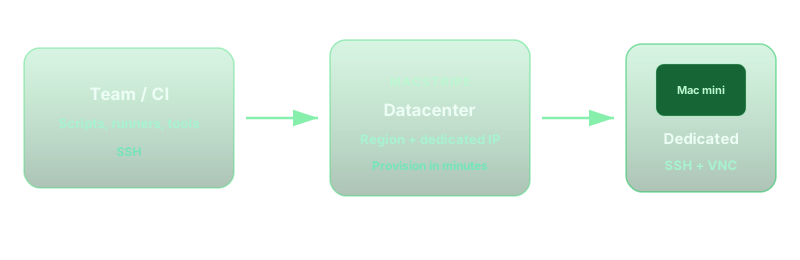
In the console, pick the nearest node (e.g. Singapore, Tokyo, Seoul, Hong Kong, US East, US West—whatever is live in your account). After activation, email delivers SSH and VNC. First login: install or update Final Cut Pro, confirm macOS language and input method, enable File Sharing or your usual transfer stack.
3.2 Upload media: separate control plane from data plane
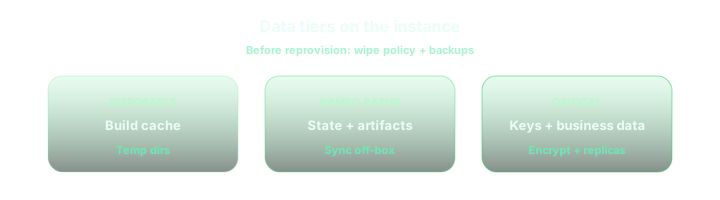
Data plane moves (tens of GB of camera originals) belong on fat pipes: rsync, SFTP, rclone, or object storage synced into a cloud folder. First full upload costs the most; incremental sync afterward. Keep library plus proxy media on one data volume path so FCP does not break links across disks. Layering guidance appears in the cloud Mac regions, latency, and storage expansion FAQ.
3.3 Libraries and remote editing
Create a cloud FCP Library with consistent Event and Project naming. On remote desktop: align timeline resolution and proxy settings with delivery specs; lean on proxy media for heavy effects. For multi-editor teams, agree who owns the master library and how .fcpbundle backups run—avoid two VNC sessions mutating the same bundle.
3.4 Export and pull-down
After Master and platform deliverables (H.264/HEVC, etc.), pull to local or NAS over the same channel used for upload. For client review only, a low-bitrate sample on cloud storage may suffice—mind privacy and link expiry. Long exports can run with VNC disconnected; SSH suffices to watch progress or logs, freeing interactive bandwidth.

4. Tuning tips: lower latency, better remote editing
- Pick a nearby node: same broad region as the editor often beats “cheapest but transoceanic.”
- Wired network: Wi‑Fi jitter shows up directly in VNC; avoid shared hotspots during large uploads.
- Proxy workflow: cut on 1080p proxies from 4K originals; switch back for final output.
- Moderate remote resolution: VNC does not need forced 4K fullscreen—slightly lower resolution can buy smoother pointer response.
- Quiet the cloud GUI: browsers, chat apps, and auto-updates steal RAM and disk I/O.
- Stagger heavy transfers: upload originals and export masters on different windows so one link is not fighting itself.
- Zero-trust VPN: Tailscale-style access is worth a latency pass before you standardize a region—security without surprise slowness.
Automation (batch captions, folder hygiene) can stay on SSH; graphics stay on VNC—split channels simplify troubleshooting.
5. Cost framing: buy a Mac vs short-term remote rent
This article does not quote prices (plans change on the site). It lists dimensions finance can model:
5.1 Buying a Mac host
Fits when you edit almost daily all year, need local capture/color hardware, or must work offline on the road. Account for depreciation, AppleCare, power, spares, and repair downtime.
5.2 Short cloud Mac rent per project
Fits FCP trials, one-off commercials, seasonal shows, or a two-week freelancer surge. Cash flow stays flexible; RAM and disk can step up per job; no resale when the project ends. Budget upload/download time and learning remote workflow into schedule. Cadence parallels the POC/MVP two-week to two-month cloud Mac provisioning and rental FAQ.
5.3 Qualitative decision cues
- Expect under eight weeks of use in the next twelve months → favor short rent and a pilot.
- Hard dependency on local IO (capture card, grading panel) → on-prem or hybrid (capture local, render remote).
- Many parallel projects → multiple cloud Macs beat one oversized host.
- Windows daily driver, FCP occasionally → remote Mac often beats a second Mac gathering dust.
Run your own break-even with pricing and the order page: rent term × seat count vs buy plus depreciation.
6. Boundaries: when remote FCP is the wrong default
Honest limits beat “cloud editing solves everything” marketing:
- Live multi-cam cut in venue: broadcast-grade monitoring latency usually fails over remote desktop.
- 8K multi-track real-time grading: local GPU, calibrated displays, and disk bandwidth dominate; remote preview is hard to trust.
- Unstable networks: drops raise save risk and team morale.
- Strict data residency: contracts forbidding cross-border media need legal review before region and transfer choices.
- Refusing proxies: insisting on full 4K originals for every remote scrub frustrates most links.
7. Pre-flight checklist before you start
- Delivery is 1080p or 4K? Will you use proxy editing?
- Total media size vs upload bandwidth—can ingest finish before the deadline?
- Did you scrub the timeline on candidate nodes for 30+ minutes over VNC?
- Does cloud disk cover peak “originals + proxies + cache + masters”?
- Export formats and client review flow documented?
- Rental term aligned to delivery milestones—no idle seats?
Project cuts first: prove Final Cut Pro on cloud Mac
If you need to validate “can remote Final Cut Pro take a paid job,” a dedicated physical M4 Mac mini rented by the day—no long contract—usually weighs less than buying hardware blind. vpszap offers multi-region nodes with SSH + VNC, activation in roughly minutes, and RAM or disk stepped per project. A one-week pilot cut beats guessing.
See regions and SKUs from vpszap cloud Mac mini; list prices stay on the official site.
